
Tech
Rename Folder Linux: Commands That Actually Work.

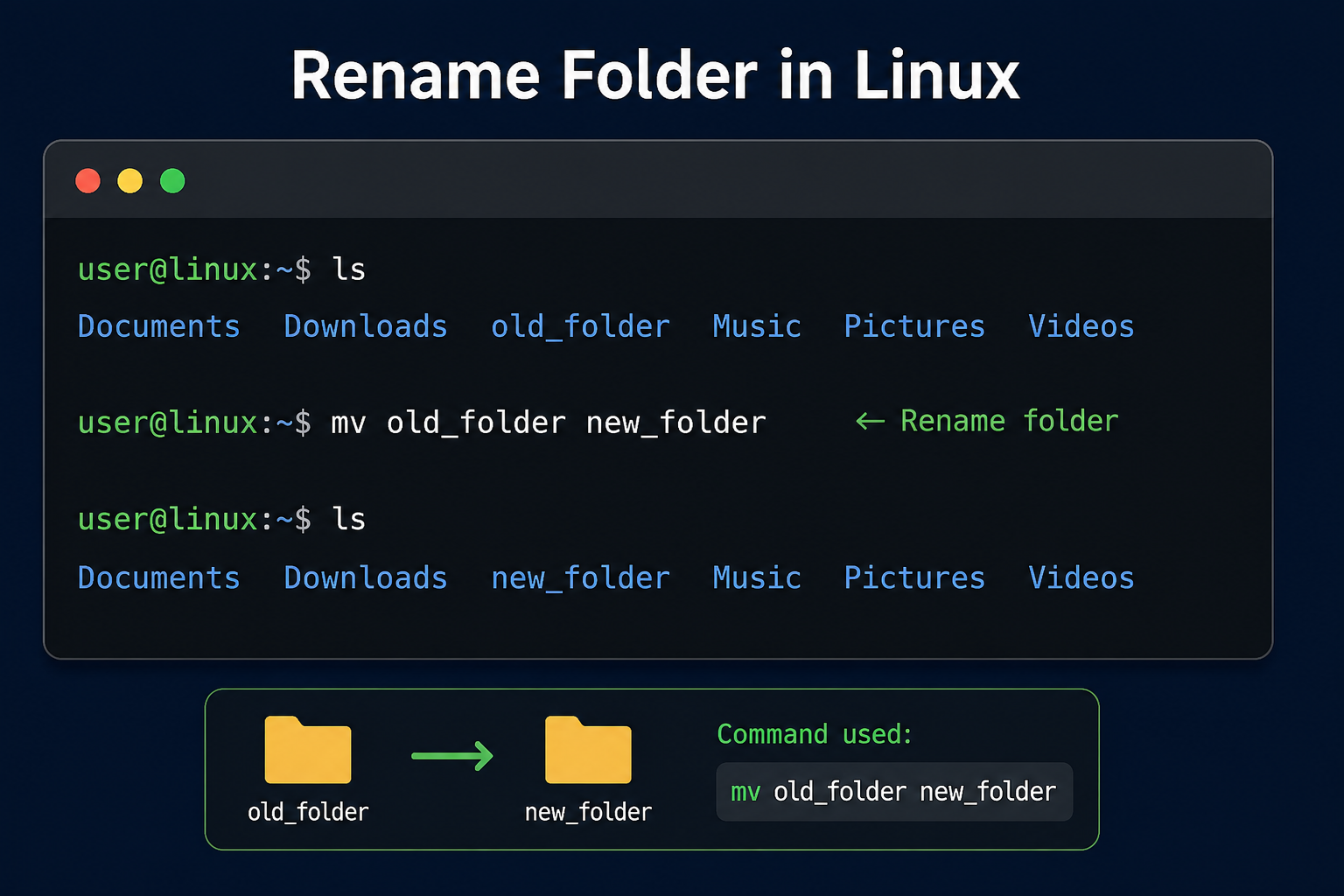
Introduction
Renaming a folder in Linux sounds simple until the terminal moves it somewhere you did not expect. The right command is usually short, but the safe method depends on paths, permissions, existing folders, spaces, and whether you are renaming one folder or many. This guide shows the exact commands, explains the hidden behavior behind them, and helps you avoid the mistakes that break scripts, projects, and server paths.
Rename Folder Linux Overview
| Aspect | Key Details |
|---|---|
| Main command | Use mv old_folder new_folder to rename a folder in the current directory. |
| Full-path method | Use mv /path/old_folder /path/new_folder when working outside your current location. |
| Safest option | Use mv -i to ask before overwriting and mv -n to avoid overwriting. |
| Destination warning | If the destination already exists as a directory, mv may move the old folder inside it instead of renaming it. |
| Best advanced option | Use mv -T old_folder new_folder when you want the destination treated as a final name, not as a target directory. |
| Bulk renaming | Use rename, a shell loop, or find depending on whether you are renaming folders in one place or across a directory tree. |
| GUI option | Right-click the folder in a file manager such as Files, Dolphin, or Thunar, then choose rename or press F2. |
The Fastest Way to Rename a Folder in Linux
The simplest way to rename a folder in Linux is to use the mv command. Although its name means “move,” Linux uses mv for both moving and renaming files or directories. The official Linux manual describes mv as a command that can “Rename SOURCE to DEST, or move SOURCE(s) to DIRECTORY,” which is exactly why it is the standard tool for this task.
mv old_folder new_folderThis command renames old_folder to new_folder as long as new_folder does not already exist as a directory in the same location. You can check the result with ls, which lists the folders in your current directory. For most desktop users, developers, and server administrators, this is the command they need most often.
Rename a Folder in the Current Directory
Use this command when both the old folder and the new name are in your current working directory. First, run pwd if you want to confirm where you are, then run ls to confirm the folder name. This small habit prevents accidental changes in the wrong project or server path.
pwd
ls
mv project_old project_new
ls
Here, project_old becomes project_new. The contents of the folder stay the same because you are changing the directory name, not copying or deleting its files. This is useful for project cleanup, version naming, backup folders, website directories, and local development folders.
Rename a Folder Using a Full Path
A full path is safer when the folder is not in your current directory. Instead of changing location with cd, you can tell Linux exactly where the old folder is and exactly what the new folder name should be. This method is helpful on servers where similar folder names may exist in several places.
mv /home/user/old_folder /home/user/new_folderThis renames /home/user/old_folder to /home/user/new_folder. The parent directory stays the same, but the final folder name changes. If you are working with production files, full paths reduce confusion and make your command easier to review before pressing Enter.
Rename a Folder with Spaces in the Name
Linux treats spaces as separators unless you quote or escape them. If a folder name contains spaces, wrap the old and new names in quotation marks. This is one of the most common beginner mistakes when renaming downloaded folders, client folders, or manually created desktop folders.
mv "Old Project Folder" "New Project Folder"You can also escape each space with a backslash, but quotes are easier to read. The same rule applies to names with special characters. When in doubt, put the folder path inside quotes so the shell reads it as one complete name.
Why Linux Uses mv Instead of a Separate Rename Folder Command
Linux treats renaming as a type of move operation. When you rename a folder, you are moving it from one pathname to another pathname, even if both names are inside the same parent directory. GNU Coreutils explains that mv moves or renames files and directories, and its behavior depends on whether the final argument is a destination name or an existing directory.
This matters because mv old_folder new_folder does not always mean “rename” in the way beginners expect. If new_folder does not exist, Linux usually renames old_folder to new_folder. If new_folder already exists as a directory, Linux may move old_folder inside it, creating a path such as new_folder/old_folder instead of replacing the name.
Rename vs Move: The Destination Decides
The destination is the key to understanding mv. When the destination is a new name, mv performs a rename. When the destination is an existing directory, mv treats that directory as a target location and places the source folder inside it.
mv old_folder new_folderIf new_folder does not exist, this renames old_folder to new_folder. If new_folder already exists, the result may become new_folder/old_folder. This is why safe renaming is not only about knowing the command, but also checking the destination first.
Safe Options You Should Use Before Renaming
The fastest command is not always the safest command. Linux gives you options that protect against overwriting, accidental moves, and silent changes. The mv manual lists safety options such as -i for interactive prompts and -n for no overwrite, while also noting that if options like -i, -f, and -n are combined, the final one takes effect.
Use mv -i to Ask Before Overwriting
The -i option makes mv interactive. It asks for confirmation before overwriting an existing destination. This is useful when you are unsure whether the new folder or file name already exists.
mv -i old_folder new_folderIf there is a conflict, Linux prompts you before making the change. This is a good default for manual work, especially on shared servers or business-critical folders. It slows you down slightly, but that pause can prevent a costly mistake.
Use mv -n to Avoid Overwriting
The -n option means no clobber, which tells mv not to overwrite an existing destination. It is helpful in scripts because it avoids interactive prompts while still protecting existing paths. Use it when you want the command to fail quietly instead of replacing something.
mv -n old_folder new_folderThis is safer than forcing a rename when the destination may already exist. It is especially useful for backup directories, deployment folders, and automation tasks. You should still verify the result afterward with ls or test -d.
Use mv -v to See What Changed
The -v option enables verbose output. It prints what the command did, which helps when you are renaming folders during cleanup or deployment. It is also useful when teaching Linux commands because you can see the action instead of guessing.
mv -v old_folder new_folderVerbose output becomes more valuable when combined with loops or scripts. If something does not rename as expected, the output gives you a clue about where the problem happened. For careful manual work, mv -iv is a strong combination.
Use mv -T to Force the Destination as a Folder Name
The -T option means no target directory. It tells mv to treat the destination as the final path, not as a directory that should receive the source folder. This helps prevent the common mistake where old_folder gets moved inside new_folder because new_folder already exists.
mv -T old_folder new_folderUse this when your intent is strictly to rename one folder to one final destination name. If the destination exists and cannot be safely replaced, the command will not behave like a simple “move into that directory” operation. This is one of the most useful details many beginner Linux rename guides do not explain clearly.
Common Rename Folder Linux Examples
Real folder names are rarely as clean as old_folder and new_folder. You may need to rename hidden folders, folders with spaces, folders in another directory, or folders while moving them at the same time. These examples cover the cases users search for most often after they learn the basic command.
Rename a Folder in Your Home Directory
The tilde symbol ~ points to your home directory. You can use it to make commands shorter while still avoiding confusion about the path. This is common when renaming downloads, documents, local projects, or user-level configuration folders.
mv ~/old_folder ~/new_folderThis changes the folder name inside your home directory. It does not matter where your terminal is currently open because ~ expands to your home path. That makes it safer than relying on your current working directory.
Move and Rename a Folder at the Same Time
You can move a folder to another location and give it a new name in one command. The source is the old folder, and the destination is the new full path. This is useful when reorganizing project folders or moving an archive into a backup directory.
mv ~/Downloads/site_backup ~/Backups/site_backup_julyThis moves site_backup from Downloads to Backups and renames it to site_backup_july. Before running this command, make sure the ~/Backups directory exists. If the parent path does not exist, mv cannot create the full directory structure for you.
Rename a Hidden Folder
Hidden folders in Linux begin with a dot. You rename them the same way as normal folders. Be careful with hidden configuration folders because applications may depend on their exact names.
mv ~/.old_config ~/.new_configThis command renames a hidden folder in your home directory. Before renaming hidden folders, close the application that uses them if possible. A wrong rename can reset app settings or make a program recreate a fresh configuration folder.
Rename a Folder That Starts with a Dash
A folder name beginning with - can be misread as an option. Use -- to tell Linux that options are finished and the remaining values are paths. This is a small but important safety habit when handling unusual folder names.
mv -- -old_folder new_folderThe -- marker protects the command from interpreting -old_folder as a flag. This is especially helpful when processing folders created by downloads, scripts, or external systems. It also makes shell loops more reliable.
Rename Only the Letter Case of a Folder
Most Linux filesystems are case-sensitive, so Project and project can be different names. Some mounted drives or shared folders may behave differently, especially if they come from systems that treat case differently. If a direct case-only rename fails, use a temporary name first.
mv Project project_temp
mv project_temp project
This two-step method avoids confusion when the filesystem or mounted location treats both names as the same path. It is also easier to troubleshoot. For production folders, check dependent scripts before changing case because some tools treat paths exactly.
Rename Multiple Folders in Linux
Bulk renaming needs more care than a single-folder rename. You can use the rename command, a Bash loop, or find depending on the pattern and folder depth. The safest rule is simple: preview first, rename second, verify third.
Use the rename Command for Pattern-Based Changes
The rename command can rename multiple paths by replacing text in their names. The Linux manual for one common rename version says it replaces the first occurrence of a substring with a replacement, and it also supports options such as -n for no action and -v for verbose output.
rename -n -v old new old_*The -n option previews the result without changing anything. Once the preview looks correct, remove -n and run it again. This approach is safer than guessing, especially when folder names share similar prefixes.
rename -v old new old_*Be aware that rename is not identical across all Linux distributions. Some systems use a substring-based version, while others use a Perl-style version with regular expressions. Before using examples from the web, run rename --version or check man rename on your own machine.
Use a Bash Loop for Simple Prefix Changes
A Bash loop is a reliable option when you want full control. The following example renames folders starting with old_ so they start with new_ instead. It also checks that each match is a directory before renaming it.
for d in old_*; do
  [ -d "$d" ] || continue
  mv -i -- "$d" "${d/old_/new_}"
done
This loop is readable and safer than a complex one-liner. The quotes protect names with spaces, and -- protects names that begin with a dash. The -i option gives you a confirmation prompt if a destination conflict appears.
Use find for Nested Folder Renaming
Use find when folders are spread across subdirectories. Renaming nested directories is more delicate because changing a parent directory can affect paths below it. Use -depth so deeper paths are handled before parent paths.
find . -depth -type d -name 'old_*' -execdir sh -c '
  for path do
    name=${path#./}
    mv -i -- "$path" "./new_${name#old_}"
  done
' sh {} +
The GNU Findutils manual notes that -execdir can be safer in many filename cases because it prefixes arguments with ./, which helps prevent matched names from being interpreted as command options. Use this type of command carefully, and test it first on a copy of the directory tree. For important folders, a backup is not optional.
Rename a Folder in Linux GUI
You do not always need the terminal. Linux desktop file managers usually allow folder renaming through the right-click menu or the F2 key. This is often the easiest method for casual desktop users who only need to rename one folder.
Open your file manager, select the folder, right-click it, and choose Rename. Type the new name and press Enter. This method is simple, but the same naming rules still matter: avoid duplicate names in the same location, avoid confusing special characters, and remember that apps or scripts may rely on the old path.
The GUI method is best for personal folders, downloads, pictures, and documents. The command line is better for servers, remote SSH sessions, scripting, batch renaming, and precise path control. ManageEngine’s guide also identifies command-line, GUI, script, and bulk-renaming methods as common approaches for renaming Linux directories.
Troubleshooting Rename Folder Linux Errors
Linux usually tells you what went wrong, but the message may be short. Most errors come from permissions, wrong paths, existing destinations, folder names with spaces, or trying to rename something that another process depends on. Read the exact error before trying random commands.
Permission Denied
A Permission denied message means your user does not have enough rights to rename that folder or modify its parent directory. You need write permission on the parent directory because renaming changes the directory entry. Check ownership and permissions before using sudo.
ls -ld old_folder
ls -ld .
Use sudo only when you understand what the folder is and why elevated rights are required. For system directories, a rename can break services, packages, or configuration paths. On shared servers, ask the owner or administrator before changing folder names outside your account.
No Such File or Directory
This error usually means the old folder name is wrong or you are in the wrong location. Run pwd to confirm your current directory and ls to check the exact spelling. Remember that Linux paths are commonly case-sensitive, so Project, project, and PROJECT may not be the same folder.
pwd
ls -la
If the folder name has spaces, quote it. If it is hidden, include the starting dot. If you are using a full path, check every parent folder in the path.
File Exists or Directory Exists
This means the destination already exists. Do not immediately force the command. First, inspect the destination and decide whether you want to choose another name, merge folders, move the old folder elsewhere, or delete the existing destination after backup.
ls -ld new_folderFor a strict rename, consider mv -T, mv -i, or mv -n depending on your goal. If the destination is not empty, replacing it can destroy or hide important data. A careful rename is better than a fast recovery attempt.
Folder Is Used by a Script or Service
Linux may allow a folder rename even when another process has files open, but the application may still break when it tries to access the old path later. Web apps, cron jobs, Docker volumes, systemd services, and build scripts often depend on exact directory names. Before renaming production folders, search configs for the old path.
grep -R "old_folder" .After renaming, update environment files, service configs, symbolic links, deployment scripts, and documentation. Then restart or reload the affected service if needed. A folder rename is not just a filesystem change when software depends on the path.
Best Practices Before Renaming Important Folders
A safe folder rename starts before the command runs. Confirm your location with pwd, list the folder with ls -ld, and check whether the destination already exists. For important folders, make a backup or snapshot before changing names.
Use quotes around names with spaces, use -- before unusual names, and prefer mv -i for manual changes. For strict one-to-one renames, use mv -T so the destination is not treated as a target directory. For scripts, use mv -n when you want to avoid overwriting without waiting for a prompt.
Avoid renaming system folders unless you know exactly what depends on them. A directory name may be referenced by services, symbolic links, cron jobs, web server configs, package files, or application settings. The command may succeed while the system fails later because the old path no longer exists.
Conclusion: 5 Practical Takeaways
- Use
mv old_folder new_folderwhen you want to rename a folder in the current Linux directory. - Use full paths when the folder is outside your current location or when you want to avoid working in the wrong directory.
- Check whether the destination already exists because
mvmay move the old folder inside an existing directory instead of renaming it. - Use safer options such as
mv -i,mv -n,mv -v, andmv -Twhen the folder matters. - Test bulk renaming with a preview or backup first because pattern-based commands can rename many folders faster than you can manually fix them.
FAQs
How do I rename a folder in Linux terminal?
Use mv old_folder new_folder to rename a folder in the Linux terminal. If the folder is not in your current directory, use full paths such as mv /home/user/old_folder /home/user/new_folder. If the name contains spaces, wrap both names in quotes, such as mv "Old Folder" "New Folder".
Is rename folder Linux the same as moving a folder?
Yes, in Linux, renaming a folder is treated as a move from one pathname to another. If the destination is a new name, the folder is renamed; if the destination is an existing directory, the source folder may be moved inside that destination. That is why checking the destination first is important.
How do I rename a folder in Linux without overwriting?
Use mv -n old_folder new_folder to avoid overwriting an existing destination. You can also use mv -i old_folder new_folder if you want Linux to ask before overwriting. For strict rename behavior where the destination should be treated as the final name, use mv -T old_folder new_folder.
How do I rename multiple folders in Linux?
Use rename, a Bash loop, or find depending on your pattern and folder depth. For simple prefix changes in the current directory, a Bash loop with mv -i is often clear and safe. For pattern-based renaming, preview with rename -n -v first, then run the command without -n only after the output looks correct.


The term New AnonIB is often searched by people trying to understand whether the controversial anonymous image-board name has returned, what modern versions may represent, and whether visiting or interacting with such platforms is safe.
That question deserves more than a simple description. The original Anon-IB became associated with serious privacy violations, stolen intimate photographs, hacking, doxxing, and nonconsensual sharing. Dutch authorities seized the original forum’s server and took it offline in April 2018 following a cybercrime investigation.
Today, websites or communities using similar names should not automatically be assumed to be the original service or an official successor. Understanding the history behind the name is essential before trusting any platform described as a New AnonIB.
New AnonIB Quick Facts
| Topic | What You Should Know |
|---|---|
| Meaning | Usually refers to a supposed new version, successor, clone, or similarly branded anonymous image board |
| Original Anon-IB | An anonymous image-sharing forum that became notorious for nonconsensual intimate imagery |
| Original shutdown | Dutch authorities seized the forum’s server in April 2018 |
| Official successor | A website using the name should not automatically be treated as an official continuation |
| Major concerns | Privacy violations, image-based sexual abuse, hacking, doxxing, impersonation, malware, and scams |
| Legal considerations | Sharing intimate images without consent can create serious criminal or civil consequences |
| Safest approach | Avoid redistributing questionable material and use recognized reporting or victim-support channels |
What Is New AnonIB?
New AnonIB is not necessarily the name of one clearly established platform. In current search behavior, the phrase can be used broadly for websites, forums, mirrors, clones, or communities that claim to resemble or replace the original Anon-IB.
That distinction matters because domain names and branding are easy to copy. A site that adopts an old platform’s appearance or terminology does not automatically inherit its identity, ownership, credibility, or history.
For users researching the term, the most useful question is therefore not simply “Where is New AnonIB?” but rather “What exactly is being presented under this name, and what risks come with it?”
What Was the Original Anon-IB?
Anon-IB was an anonymous image board where users could post images and messages without attaching their public identities to each contribution.
The platform became infamous because significant portions of its community were reportedly used to distribute intimate photographs of women and girls without permission. Investigative reporting also connected users of the forum with attempts to obtain private material from compromised email, social-media, and cloud-storage accounts.
The problem extended beyond anonymous image posting. Reports described material being organized around individuals and geographic areas, with personal or social-media information sometimes accompanying images.
That history explains why searches for New AnonIB require a strong privacy and safety perspective.
What Happened to Anon-IB?
In April 2018, Dutch police seized the server used by Anon-IB as part of an investigation involving hacking and stolen intimate material.
Authorities had investigated suspects accused of gaining unauthorized access to accounts belonging to women and obtaining private photographs or videos. Several suspects were arrested or investigated, while law enforcement took the forum offline.
Reporting at the time indicated that the site’s administrators denied accusations against the platform. They also reportedly stated that there would not be a restart of the original service.
This history is important when evaluating modern claims involving the New AnonIB name. A later website using similar branding may be independent, copied, unofficial, or operated by entirely different people.
Is New AnonIB the Same as the Original Anon-IB?
There is no good reason to assume that a current website using AnonIB-related branding is automatically the original platform.
Online communities frequently disappear and later inspire imitators. Old names can be reused because they already have search demand and recognition, creating an opportunity for unrelated operators to attract visitors.
A clone may copy an old site’s layout, categories, terminology, or logo without having any genuine relationship with the original administrators.
For this reason, claims such as “official AnonIB,” “new official domain,” or “real replacement” should be treated cautiously unless they can be supported independently.
Why People Search for New AnonIB
Search intent around New AnonIB is primarily informational and navigational. Some users have encountered the name elsewhere and simply want to know what it means, while others may be checking whether the original forum returned.
There is also a significant safety-related search intent. Someone may discover that their name, photographs, usernames, or private information have been associated with a similar image board and want to understand what action to take.
That second use case is especially important because searching aggressively through questionable websites can sometimes expose a person to additional tracking, malicious downloads, scams, or disturbing material without actually helping them remove the content.
The Biggest Privacy Risks Associated With AnonIB-Style Sites
Anonymous publishing itself is not automatically abusive. Anonymous forums can support legitimate discussion, whistleblowing, political expression, and privacy.
The danger arises when anonymity is combined with weak moderation and communities built around obtaining or distributing private material.
Historical reporting about Anon-IB illustrates several risks that users should recognize when encountering supposed successors.
Nonconsensual Intimate Images
One of the most serious risks is the sharing of private sexual or intimate content without the depicted person’s consent.
The Cyber Civil Rights Initiative uses the term Nonconsensual Distribution of Intimate Images, or NDII, for private sexually explicit images distributed without permission. It can include material originally obtained consensually as well as material acquired through hacking, hidden recording, or other nonconsensual methods.
Consent to create or privately send an image does not equal consent to publish it publicly.
Doxxing and Personal Information
Image-based abuse can become more dangerous when photographs are combined with identifying details.
A name, workplace, school, town, social-media account, email address, or other information can make it easier for strangers to identify and harass someone.
Historical coverage of Anon-IB documented examples of images being connected with victims’ locations or social-media profiles.
Hacked Accounts
Some material associated with the original forum was reportedly obtained after unauthorized access to online accounts.
Investigators described suspects obtaining access to email, cloud-storage, and social-media accounts belonging to hundreds of women.
This makes account security relevant even for people who have never knowingly uploaded intimate images to a public website.
Impersonation and Fake Content
Modern image abuse no longer requires an authentic stolen photograph.
AI-generated sexual images and manipulated media can be used to falsely depict a real person. This means someone can become a target even when no genuine intimate photo of them exists.
The legal and platform-policy environment is increasingly recognizing this problem alongside traditional nonconsensual imagery.
Malicious Websites and Fake Clones
A supposed New AnonIB site may also represent a cybersecurity risk independent of its content.
Old or notorious brand names attract copycats because people actively search for them. A fake mirror can use curiosity to encourage visitors to create accounts, reveal personal information, enable browser notifications, download files, or enter credentials.
The safest assumption is that an unfamiliar clone has not earned trust merely because it resembles a previously known website.
New AnonIB and the Law
Laws vary by jurisdiction, so specific legal advice should come from a qualified professional familiar with the applicable location.
In the United States, however, the legal framework surrounding nonconsensual intimate imagery has become significantly stronger. The TAKE IT DOWN Act became federal law on May 19, 2025 and addresses intentional disclosure of certain nonconsensual intimate visual depictions, including qualifying computer-generated material.
The law also established requirements for covered online platforms to create a notice-and-removal process for qualifying nonconsensual intimate depictions.
Separate state laws may also apply. The Cyber Civil Rights Initiative reports laws addressing nonconsensual distribution of intimate images across all 50 U.S. states plus Washington D.C. and certain territories, although the details and available remedies differ by jurisdiction.
Copyright law, privacy law, harassment statutes, computer-crime laws, stalking provisions, impersonation rules, and laws protecting minors may also become relevant depending on the circumstances.
How to Evaluate a Site Claiming to Be New AnonIB
A familiar name should never substitute for basic verification.
Look critically at what a website asks visitors to do and how it handles privacy. Sites that hide basic ownership information are not automatically malicious, but requests for unnecessary personal details should raise concern.
Claims of being an “official replacement” are also weak evidence on their own. The original platform’s shutdown means historical branding can easily be appropriated by unrelated operators.
The content itself matters even more. A platform dominated by requests for private photographs, personal identification, hacked files, or nonconsensual intimate content carries obvious ethical, security, and potentially legal risks.
Red Flags You Should Not Ignore
A suspicious AnonIB-style community deserves extra caution when it combines anonymity with aggressive demands for user participation.
Common warning signs include requests to identify private individuals, encouragement to upload intimate images without clear consent, trading language around stolen content, requests for account credentials, forced downloads, unusual browser permissions, cryptocurrency payments for access, or claims that illegal material is acceptable simply because users remain anonymous.
A legitimate privacy-focused forum does not need to normalize exploitation to protect anonymity.
What to Do If Your Images Appear on an AnonIB-Type Site
Finding private content online can create an understandable urge to confront posters immediately or repeatedly search every related forum. A more structured response usually preserves better evidence and reduces unnecessary redistribution.
- Preserve useful evidence without spreading the material. Record relevant page information, dates, usernames, URLs, and screenshots when appropriate, while avoiding unnecessary copying or forwarding of intimate content.
- Protect your accounts. Change compromised or reused passwords, enable multifactor authentication, review active login sessions, and check recovery email addresses or phone numbers for unauthorized changes.
- Use the platform’s reporting process when available. Clearly identify the material and state that it was published without consent.
- Request removal from search engines or hosting services where applicable. Removing the original material is ideal, but reducing discoverability can also limit further exposure.
- Consider professional or legal assistance. Laws and procedures differ substantially by location, particularly when harassment, hacking, extortion, impersonation, or threats are involved.
- Use specialist support resources. The Cyber Civil Rights Initiative maintains a Safety Center with guidance for people experiencing image-based sexual abuse.
- Treat content involving minors differently. Sexual imagery involving minors can involve child sexual abuse material and requires specialized reporting procedures rather than ordinary content-sharing or investigation by private individuals.
The most important principle is not to increase circulation while trying to document what happened.
Should You Visit a New AnonIB Website to Check for Your Name?
Searching yourself online can be useful, but directly exploring questionable image boards is not always the safest first step.
Unknown sites may track visitors, expose them to malicious advertising, attempt phishing, display disturbing material, or make removal harder by encouraging additional interaction.
If your goal is reputation monitoring, start with mainstream search engines and established reporting channels. If there is credible evidence that intimate material exists on a specific service, preserving the minimum necessary information for a report may be more useful than browsing through unrelated content.
Can Anonymous Image Boards Ever Be Safe?
Yes. The concept of an anonymous image board is not inherently harmful.
Anonymity can protect people discussing sensitive health matters, reporting misconduct, seeking support, or expressing opinions in environments where revealing identity could create risks.
The crucial difference is moderation and community purpose.
A privacy-respecting anonymous platform establishes boundaries around harassment, exploitation, threats, illegal material, and personal information. A platform that treats nonconsensual exposure as entertainment is using anonymity in a fundamentally different way.
New AnonIB vs. Legitimate Anonymous Communities
| Factor | Higher-Risk AnonIB-Style Platform | Responsible Anonymous Community |
| Consent standards | Unclear or routinely ignored | Explicit rules protecting users |
| Personal information | Doxxing may be tolerated | Identifying information restricted |
| Intimate content | Questionable sourcing | Clear consent and moderation rules |
| Security | Unknown operators or suspicious redirects | Transparent security practices |
| Reporting | Difficult or ineffective | Accessible reporting mechanisms |
| Moderation | Minimal or inconsistent | Enforced community standards |
| User pressure | Encourages trading or identification | Discourages harassment and exploitation |
The label “anonymous” therefore tells you very little about whether a community is trustworthy.
Common Misconceptions About New AnonIB
“If a Site Uses the Name, It Must Be the Original”
Not necessarily.
Domains expire, brands are copied, and communities fragment. A familiar design or name cannot prove continuity of ownership.
“Anonymous Means Nobody Can Be Identified”
Anonymity is not the same as invisibility.
Web services, network providers, devices, payment systems, logs, account information, and legal investigations can all create records. The history of the original Anon-IB itself demonstrates that supposedly anonymous environments can become part of law-enforcement investigations.
“If Someone Sent a Photo Voluntarily, Sharing It Is Fine”
This misunderstands consent.
Permission to receive an intimate photograph privately does not automatically authorize publication or redistribution. CCRI’s definition of NDII specifically includes situations where an image was consensually obtained but later distributed without permission.
“Deleting an Account Solves Everything”
Account deletion can help limit future exposure but cannot guarantee that previously downloaded material disappears.
Digital content can be copied across devices and platforms. Effective responses may therefore involve account security, takedown requests, search-result removal, evidence preservation, and legal remedies rather than a single action.
Protecting Yourself From Image-Based Abuse
The strongest strategy combines privacy habits with account security.
Unique passwords and multifactor authentication can make account compromise more difficult. Cloud albums, shared folders, old devices, recovery accounts, and forgotten social-media profiles also deserve periodic review.
Before sharing sensitive material, consider what would happen if the recipient’s device or account were compromised. This is not about blaming people whose privacy is violated; it is simply a practical way to reduce digital exposure.
People should also be cautious about granting apps unrestricted access to photo libraries or cloud storage when that access is unnecessary.
Why the Term “Revenge Porn” Can Be Misleading
Older coverage frequently described Anon-IB as a “revenge porn” forum, but many experts now prefer terms such as nonconsensual distribution of intimate images, nonconsensual intimate imagery, or image-based sexual abuse.
The Cyber Civil Rights Initiative explains that the word “revenge” can inaccurately suggest a particular motive and may imply that the victim did something to provoke the abuse. Offenders may instead be motivated by money, entertainment, voyeurism, status, coercion, or other reasons.
Using more precise terminology keeps the focus where it belongs: whether intimate material was created or distributed without meaningful consent.
The Bigger Lesson From Anon-IB
The history behind New AnonIB shows why online anonymity requires responsible governance.
Technology can make publishing nearly instantaneous while allowing intimate content to be duplicated far beyond the control of the person depicted. Once a community begins rewarding users for obtaining private material, the damage can extend from a single privacy violation into hacking, harassment, impersonation, doxxing, and repeated redistribution.
The original Anon-IB shutdown also demonstrated that operating across borders does not necessarily make an online community immune from investigation. Its server was seized following an international problem involving victims from multiple countries.
Frequently Asked Questions About New AnonIB
Is New AnonIB a real website?
The phrase may be used for different sites, clones, mirrors, or supposed successors. A domain using AnonIB branding should not automatically be considered the original service or an official continuation.
When was the original Anon-IB shut down?
Dutch authorities took the original Anon-IB forum offline in April 2018 after seizing its server during a cybercrime investigation.
Why was Anon-IB controversial?
The site became associated with nonconsensual intimate images, stolen private material, hacking, and the publication of identifying information connected to victims.
Is viewing a New AnonIB site safe?
There is no universal answer because different sites may operate under similar names. Unknown clones can create privacy, cybersecurity, ethical, and potentially legal risks, particularly when they distribute stolen or nonconsensual material.
Is sharing someone’s private intimate photo without permission legal?
Laws vary by jurisdiction, but nonconsensual intimate-image distribution can lead to serious legal consequences. In the United States, the federal TAKE IT DOWN Act became law on May 19, 2025, alongside existing state-level protections.
What should I do if private images of me are posted?
Preserve necessary evidence, secure your accounts, use available reporting and removal processes, avoid redistributing the content, and consider specialized legal or victim-support resources.
Can AI-generated intimate images count as abuse?
Yes. Sexually explicit digital forgeries can be used as a form of image-based sexual abuse even when the depicted event never occurred. Modern laws and platform policies increasingly address manipulated or AI-generated intimate imagery as well as authentic images.
Final Thoughts on New AnonIB
Searching for New AnonIB can lead to a confusing mixture of historical information, copied names, alleged successors, and potentially risky websites. The most reliable starting point is the documented history: the original Anon-IB became notorious for nonconsensual intimate-image sharing and was taken offline by Dutch authorities in April 2018.
Any modern platform adopting similar branding should be evaluated independently rather than trusted because of the name. Pay close attention to consent, privacy, moderation, security practices, and the way the community treats personal information.
For ordinary users, protecting accounts and avoiding participation in the distribution of questionable material is far more important than discovering which clone claims to be the “real” New AnonIB. For people affected by nonconsensual imagery, evidence preservation, legitimate reporting channels, account security, and specialist support provide a safer path forward.
I can also create an SEO FAQ schema, supporting keyword cluster, or internal-link plan for this New AnonIB article.

If you want to know how to send GIF in Snapchat, the process is quick once you know where to find the GIF option. Snapchat allows users to add animated GIFs to photos, videos, Stories, and chat messages to make conversations more expressive and fun.
Whether you are replying to a friend, creating a creative Snap, or adding personality to your Story, GIFs can help your content stand out. This guide explains every method, including where to find GIFs, how to use them correctly, and what to do if GIFs are not working.
Quick Facts: Sending GIFs on Snapchat
| Feature | Details |
|---|---|
| GIFs available in | Snaps, Stories, and Chats |
| GIF source | GIPHY integration |
| Requires | Updated Snapchat app |
| Works on | Android and iPhone |
| Best use | Reactions, stickers, and creative content |
How to Send GIF in Snapchat Using a Snap
The easiest way to add a GIF is through Snapchat’s sticker tools. Follow these steps:
- Open the Snapchat app on your phone.
- Tap the camera button to create a new Snap.
- Capture a photo or record a video.
- Tap the sticker icon on the right side of the screen.
- Select the GIF option.
- Search for a GIF using keywords such as “happy,” “funny,” “love,” or “birthday.”
- Tap your preferred GIF to add it to your Snap.
- Resize, rotate, or move the GIF anywhere on the screen.
- Tap the send button to share your Snap.
Your selected GIF will appear as an animated sticker on your photo or video.
How to Send GIF in Snapchat Chat Messages
Snapchat also lets you send GIFs directly in conversations.
Steps to Send a GIF in Snapchat Chat
- Open Snapchat.
- Swipe right to access your Chat list.
- Select the conversation where you want to send a GIF.
- Tap the emoji icon near the message box.
- Choose the GIF section.
- Search for the animation you want.
- Tap the GIF to send it instantly.
This method is useful when you want to respond quickly without creating a Snap.
How to Add GIFs to Snapchat Stories
Adding GIFs to Stories can make your posts more engaging.
Follow These Steps:
- Create a photo or video Snap.
- Tap the sticker button.
- Select GIF.
- Choose an animation that matches your content.
- Adjust its size and placement.
- Post your Story.
GIFs work especially well for announcements, celebrations, reactions, and themed content.
How to Find the Best GIFs on Snapchat
Snapchat’s GIF library is powered by searchable categories, so using the right keywords improves results.
Try searching for:
- Funny reactions
- Trending animations
- Emotional expressions
- Seasonal GIFs
- Popular internet memes
- Celebration stickers
Instead of searching for general words, use specific terms. For example, search “excited dance” instead of only “happy” to find more relevant animations.
Why Can’t I Find GIFs on Snapchat?
Sometimes the GIF feature may not appear. Common reasons include:
1. Snapchat App Is Outdated
Older versions may not support the latest sticker features.
Solution:
- Update Snapchat from your device’s app store.
- Restart the app after updating.
2. Poor Internet Connection
GIF libraries require an active internet connection.
Solution:
- Switch between Wi-Fi and mobile data.
- Restart your connection.
3. Temporary Snapchat Issues
Server problems can prevent GIFs from loading.
Solution:
- Close and reopen Snapchat.
- Check again later.
4. GIF Feature Availability
Some features may appear differently depending on your region, device, or Snapchat version.
Common Mistakes When Using GIFs on Snapchat
Avoid these mistakes to create better Snaps:
- Adding too many GIFs that cover important parts of your photo.
- Using unrelated GIFs that confuse viewers.
- Choosing low-quality or distracting animations.
- Forgetting to update Snapchat before troubleshooting.
A well-placed GIF should enhance your content rather than overpower it.
GIFs vs Regular Stickers on Snapchat
| Feature | GIFs | Stickers |
| Animation | Yes | Usually no |
| Expression | More dynamic | More simple |
| Best for | Reactions and humor | Labels and decoration |
| Search options | Keyword-based | Categories and designs |
GIFs are ideal when you want movement and personality, while stickers work better for basic decoration.
Tips for Using GIFs Like a Snapchat Pro
Match GIFs With Your Content
A travel Snap may look better with location-themed animations, while a birthday post can use celebration GIFs.
Keep GIF Placement Balanced
Move GIFs away from faces, text, and important visual details.
Use Trending GIF Styles
Popular reaction GIFs often make conversations feel more natural and relatable.
Combine GIFs With Other Snapchat Features
You can mix GIFs with:
- Filters
- Text captions
- Music
- Bitmoji
- Drawing tools
This creates more engaging Snaps without making them look cluttered.
Frequently Asked Questions
Can I send GIFs from my phone gallery on Snapchat?
Snapchat does not usually send standard GIF files directly from your gallery as animated GIF messages. Instead, use Snapchat’s built-in GIF sticker feature.
Are Snapchat GIFs free to use?
Yes, Snapchat GIF stickers are generally available free inside the app.
Why are my Snapchat GIFs not moving?
If a GIF appears frozen, update Snapchat, check your internet connection, or restart the application.
Can I create my own GIF for Snapchat?
Snapchat mainly uses its built-in GIF library, but you can create custom animated content using external tools and upload it as a video or Snap.
Final Thoughts
Learning how to send GIF in Snapchat makes it easier to create entertaining Snaps, better conversations, and more engaging Stories. Whether you use GIFs for reactions, jokes, celebrations, or creative designs, Snapchat’s built-in GIF tools provide a simple way to add movement and personality.
Keep your Snapchat app updated, search with specific keywords, and choose GIFs that match your message for the best results.

If you searched for gdtj45 builder, you are probably trying to answer a basic question before downloading, using, or troubleshooting it: What exactly is this software, and can I trust the information being published about it?
That question matters because the current search landscape is unusually inconsistent. Various third-party pages describe GDTJ45 Builder as a development platform, visual app builder, workflow tool, code-management environment, and even a construction-management product, while clear first-party documentation is difficult to identify.
Quick facts
Primary search intent: Informational and verification-focused
What users want to know: What GDTJ45 Builder is, whether it is legitimate, what it supposedly does, and whether it is safe to use
Key issue: Many detailed claims come from third-party articles rather than clearly identifiable vendor documentation
Best approach: Verify the product and its publisher before installing software, entering credentials, or following technical fixes
What Is gdtj45 builder?
gdtj45 builder is a term currently appearing across technology and software-related websites, usually in connection with a supposed development or builder platform.
Several articles characterize it as software combining visual project building with coding, reusable components, workflow management, collaboration, testing, and automation.
The problem is that descriptions are not consistent enough to treat every published feature as established fact.
For example, one source presents GDTJ45 Builder as a development environment for applications and internal tools, while another describes a product with a substantially different purpose.
That inconsistency should change how you research the keyword.
Instead of asking only “What features does GDTJ45 Builder have?”, the more useful question is:
“Which claims about GDTJ45 Builder can be traced to a legitimate first-party source?”
Is GDTJ45 Builder a Real Software Product?
There are webpages discussing GDTJ45 Builder, but the existence of articles about a product does not by itself prove that the software is a verified, commercially available platform.
As of August 2026, searches for the term surface numerous third-party articles but do not provide the kind of obvious first-party footprint users normally expect from an established development product: clearly identifiable official documentation, a transparent vendor identity, authoritative release information, and consistent product specifications.
Some publishers themselves acknowledge that publicly available information is limited or inconsistent. One source explicitly notes that GDTJ45 Builder lacks an identifiable official website or trusted product record, while another describes the platform cautiously because information about it varies online.
That does not automatically prove that every reference to gdtj45 builder is fraudulent. It does mean that strong claims about the product should be treated as unverified until they can be traced to a legitimate vendor.
Why Information About gdtj45 builder Is Confusing
The biggest challenge is not a shortage of content. It is a shortage of consistently verifiable information.
Different Websites Describe Different Products
A trustworthy software product usually develops a recognizable information trail:
- An official domain
- Consistent product positioning
- Named developers or company ownership
- Documentation
- Release notes
- Terms of service and privacy information
- Support channels
- Verified repositories or marketplace listings
- Independent user discussions
With GDTJ45 Builder, third-party descriptions vary considerably.
Some pages call it a modular development platform. Others associate it with code editing, internal apps, workflow automation, or project management.
When multiple sites repeat similar feature lists without pointing back to authoritative documentation, repetition should not be mistaken for verification.
Highly Specific Statistics May Lack Traceable Sources
Another warning sign is the appearance of very precise statistics.
Some articles claim millions of active users, millions of processed code snippets, exact percentages for error detection, specific time savings, and detailed performance benchmarks.
Numbers such as these should normally be traceable to:
- A vendor report
- An audited dataset
- A reputable research organization
- Product telemetry documentation
- A named survey with methodology
If no primary source accompanies the statistic, it is safer to treat the number as an unsupported claim rather than established evidence.
Claimed Features of GDTJ45 Builder
Based on recurring third-party descriptions, the following capabilities are often associated with the term.
| Claimed capability | Common description | Verification status |
|---|---|---|
| Visual development | Build interfaces or workflows visually | Frequently claimed; verify with vendor |
| Code editing | Modify application logic directly | Frequently claimed; verify with documentation |
| Reusable modules | Reuse components across projects | Commonly mentioned |
| Collaboration | Multiple users working on projects | Commonly mentioned |
| Workflow automation | Automate repetitive development tasks | Commonly mentioned |
| Testing/debugging | Detect errors before deployment | Claimed by several publishers |
| API integrations | Connect external services or databases | Reported, but implementation details vary |
| Version management | Track or restore changes | Claimed by some third-party guides |
These features sound plausible for a modern low-code or development platform, but plausibility is not proof.
The distinction is important: a feature appearing in several articles does not necessarily mean the underlying software provides it.
How to Verify gdtj45 builder Before Using It
If you encountered GDTJ45 Builder through a download page, troubleshooting article, advertisement, forum post, or search result, verify it systematically before taking action.
1. Identify the Actual Vendor
Start by finding the legal entity responsible for the product.
Look for:
- Company name
- Business address
- Support contact
- Privacy policy
- Terms of service
- Company registration details where applicable
- Named development team
- Established social or professional profiles
A generic website mentioning the software is not necessarily its publisher.
2. Find First-Party Documentation
Legitimate developer software typically has documentation covering installation, supported platforms, configuration, security, updates, APIs, and troubleshooting.
Documentation should ideally live on the vendor’s own domain or a repository demonstrably controlled by that vendor.
Be cautious when search results consist almost entirely of independent blogs paraphrasing one another.
3. Verify the Download Source
Do not download an installer simply because a page ranks well in search.
A software download should ideally come from:
- The verified developer website
- A recognized operating-system marketplace
- A verified software repository
- A publisher-controlled GitHub or equivalent repository
Avoid anonymous file hosts, shortened URLs, unofficial mirrors, and executable files distributed through unrelated blogs.
4. Inspect the File Before Running It
Before launching unfamiliar software:
- Check the publisher’s digital signature
- Scan the file with reputable security software
- Compare cryptographic hashes when the vendor publishes them
- Check whether the installer requests unusual permissions
- Search the filename and publisher independently
- Back up important data
Unknown software should not receive administrator-level privileges simply because an online troubleshooting article recommends them.
5. Verify Version Numbers and Release History
A mature application normally provides a coherent release trail.
Look for information such as:
- Version numbers
- Release dates
- Changelogs
- Security patches
- End-of-support notices
- Archived releases
If websites discuss numerous versions but no primary release history exists, investigate further before trusting those details.
A Major Mistake: Following Random “Fixes” Too Quickly
Several articles about GDTJ45 Builder publish detailed troubleshooting instructions, including suggestions involving administrator permissions, antivirus exclusions, environment variables, cache deletion, and removal of application folders.
Those actions can materially affect a computer.
Do not disable security protections, whitelist unknown executables, delete system or application directories, or grant elevated privileges until you have confirmed exactly what program you are dealing with.
Why Administrator Access Matters
Running an application as administrator can give it substantially greater access to your operating system.
For verified software from a trusted publisher, elevation may occasionally be required. For software with uncertain provenance, granting it simply to make an error disappear is poor security practice.
Why Antivirus Exclusions Deserve Extra Caution
Adding a folder to antivirus exclusions prevents normal security inspection in that location.
That is sometimes appropriate for trusted development environments with known false positives, but only when the software and vendor are established.
For an unidentified executable, an antivirus warning should be investigated rather than automatically bypassed.
How to Evaluate Claims About GDTJ45 Builder
A simple evidence hierarchy can save considerable time.
Strong Evidence
Give the most weight to:
- Official vendor documentation
- Signed releases from the verified publisher
- Verified source-code repositories
- Recognized software marketplaces
- Independent technical reviews with hands-on evidence
Moderate Evidence
Useful but not conclusive sources include:
- Established technology publications
- Detailed developer discussions
- Reputable forums
- Demonstrations showing the actual interface
- Independent security analysis
Weak Evidence
Treat the following cautiously:
- Articles with no primary-source citations
- Pages repeating identical statistics
- Generic feature lists
- Anonymous download portals
- Claims that cannot be reproduced
- Content describing menus or settings without screenshots or documentation
- Articles that recommend risky system changes without identifying an official support source
This method is useful not only for gdtj45 builder, but for any unfamiliar software discovered through search.
What If You Already Installed GDTJ45 Builder?
If you installed something carrying the GDTJ45 name and are uncertain about its origin, focus first on identification rather than experimentation.
Check the Installed Application
Review:
- Exact application name
- Publisher
- Version
- Installation directory
- Installation date
- Digital signature
- Running processes
- Startup entries
The publisher information is especially valuable because it can reveal whether the application belongs to an identifiable company.
Scan the System
Run a full scan with your operating system’s current security tools or another reputable endpoint-security product.
Do not rely exclusively on whether the application “seems to work.” Malicious or unwanted software can function normally while performing unrelated background activity.
Review Permissions
Check whether the program has access to:
- Administrator privileges
- Startup execution
- Network connections
- Browser data
- Development credentials
- API tokens
- SSH keys
- Cloud accounts
Developers should be particularly careful because development computers often contain credentials capable of accessing production systems.
Rotate Sensitive Credentials When Necessary
If an unverified application had access to sensitive files or development secrets, consider rotating potentially exposed credentials.
These may include:
- Git access tokens
- Cloud API keys
- Database credentials
- SSH keys
- Deployment secrets
- CI/CD tokens
Removing software does not automatically invalidate credentials it may already have accessed.
Common Questions About gdtj45 builder
What is gdtj45 builder used for?
Third-party articles commonly describe it as software for building or managing digital projects, editing code, creating applications, automating workflows, and collaborating with development teams.
However, these feature descriptions should be verified against authoritative vendor documentation before being treated as confirmed product capabilities.
Is GDTJ45 Builder free?
There is not enough clearly verifiable first-party information to state a reliable pricing model.
Be cautious of pages promising a “free download” unless you can first establish that they are operated or authorized by the actual software publisher.
Is GDTJ45 Builder safe?
Safety cannot be determined from the name alone.
The answer depends on the exact application file, publisher, download source, version, digital signature, permissions, and security scan results.
Can you edit code with GDTJ45 Builder?
Multiple third-party articles claim that code editing is a central feature, including direct modification, testing, and debugging workflows.
Without authoritative documentation, however, the exact interface and capabilities should not be presented as confirmed.
Why does GDTJ45 Builder not work?
Before troubleshooting, verify that the program you have is legitimate and identify its exact version and publisher.
If the application is verified, normal software troubleshooting principles apply: read the actual error message, check official system requirements, review logs, confirm dependencies, verify file permissions, and consult first-party documentation.
Avoid copying system-level fixes from unrelated articles without understanding what each change does.
Should I download GDTJ45 Builder?
Only after you can identify a trustworthy publisher and official distribution source.
If you cannot determine who created the software, where its documentation lives, or whether the installer is authentic, the safer choice is not to execute it.
GDTJ45 Builder vs. a Verifiable Development Platform
The most important distinction is not whether a builder has an impressive feature list. It is whether those features, security practices, and ownership details can be independently confirmed.
| Evaluation factor | Well-documented platform | Unverified builder |
| Publisher identity | Clear | Unclear or inconsistent |
| Official documentation | Extensive | Difficult to locate |
| Release history | Public and traceable | Limited or uncertain |
| Security information | Documented | Unknown |
| Download source | Verified | May rely on third parties |
| Pricing | Clearly published | Inconsistent or unavailable |
| Community history | Easy to research | Limited |
| Feature verification | Reproducible | Mostly article-based claims |
A polished article about software is not a substitute for an identifiable software vendor.
What Content About gdtj45 builder Often Gets Wrong
A large portion of software content online starts by assuming the product exists exactly as described and then builds increasingly detailed claims on top of that assumption.
That approach creates several problems.
Inventing Precision
Specific usage statistics, support-ticket counts, processing speeds, percentage improvements, and hardware requirements can sound authoritative.
Unless the underlying source is identifiable, those numbers add apparent certainty without adding genuine evidence.
Treating Repetition as Confirmation
Ten websites repeating a claim do not necessarily equal ten independent sources.
If all ten derive their information from the same unsupported article—or from one another—the evidence has not become stronger.
Skipping the Verification Step
For an obscure software keyword, verifying the entity itself should come before writing installation guides, configuration tutorials, or performance recommendations.
That is especially important when the advice involves executable files or system security.
Practical Checklist Before Trusting GDTJ45 Builder
Use this checklist if you are researching the software for personal or business use:
-
Confirm the developer or company behind the product.
-
Locate an official website controlled by that entity.
-
Find first-party installation and technical documentation.
-
Verify the exact supported operating systems.
-
Confirm pricing or licensing directly from the publisher.
-
Download only from an authorized distribution channel.
-
Check the installer’s digital signature.
-
Scan the file before execution.
-
Review requested permissions.
-
Avoid disabling antivirus protection to force installation.
-
Back up important projects before testing unfamiliar software.
-
Keep development credentials outside untrusted environments.
-
Verify troubleshooting instructions against official documentation.
-
Test unknown tools in an isolated environment where appropriate.
-
Stop if the publisher or software origin cannot be established.
Final Verdict: What You Should Know About gdtj45 builder
The search results around gdtj45 builder describe what sounds like a modern development platform with visual building, coding, automation, collaboration, and workflow-management features. Yet the available third-party descriptions are inconsistent, and some sources themselves question how much reliable first-party information exists.
For that reason, the safest and most useful conclusion is not to repeat every published feature as fact. Treat GDTJ45 Builder as an insufficiently verified software term until its publisher, official website, documentation, releases, and download source can be independently established.
If you encountered the name because you are considering an installation or troubleshooting an existing copy, your next step should be to verify the exact publisher and file source before changing security settings, granting administrator permissions, or entering sensitive credentials.


New AnonIB: What It Is, Risks, and Safety Guide

Mygreenbucks Net Jones: What You Need to Know

How to Send GIF in Snapchat: Easy Step-by-Step Guide
-

 Fashion9 years ago
These ’90s fashion trends are making a comeback in 2017
-
Entertainment9 years ago
The final 6 ‘Game of Thrones’ episodes might feel like a full season
-
Fashion9 years ago
According to Dior Couture, this taboo fashion accessory is back
-
Business9 years ago
Uber and Lyft are finally available in all of New York State
-
Entertainment9 years ago
The old and New Edition cast comes together to perform
-
Sports9 years ago
Phillies’ Aaron Altherr makes mind-boggling barehanded play
-
Sports9 years ago
Steph Curry finally got the contract he deserves from the Warriors
-
Entertainment9 years ago
Disney’s live-action Aladdin finally finds its stars